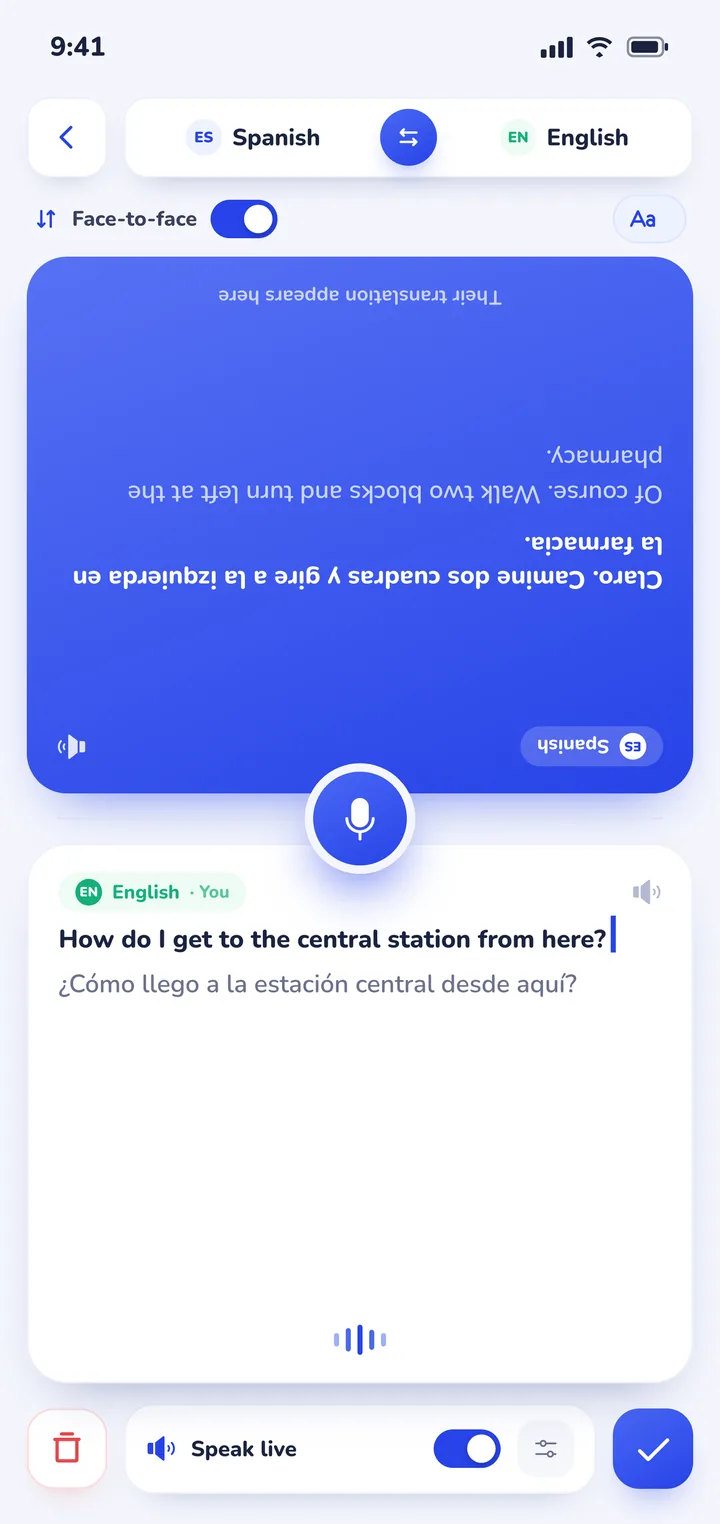
Open your translation app's camera tool, hold your phone steady over the printed page, and take a clear photo to overlay translations directly on top of the foreign text. In Google Translate, you can download offline language packs ahead of time to translate menus without mobile data. In Clawmium Translate, you capture a photo to view the translated overlay, tap to toggle between languages, and switch directly to split-screen conversation mode if you need to ask the waiter about ingredients.
To translate a menu with your camera abroad, travelers capture a photograph or use live viewfinder detection to display translated ingredient names directly over the original text. Optical character recognition reads the typography, while machine translation converts dish titles, sides, and prices into your preferred language. Printed typography in Latin, Cyrillic, Greek, Japanese, and Korean scripts converts reliably under even lighting.
Stylized calligraphy, dim bistro lighting, and handwritten daily chalkboard specials produce incomplete or confusing scan results. When navigating severe food allergies, dietary restrictions, or regional culinary idioms, travelers should use camera translation to identify dishes and verify preparation details directly with waitstaff. In underground cellars without cellular coverage, offline language packs are necessary unless an international travel eSIM provides reliable data connectivity.
How to translate a menu with your camera step by step
Most modern translation apps make reading printed food menus quick once you know how to position your phone. Follow these five steps for clean, readable results:
- Ensure even light and wipe your lens: Restaurant tables are often dimly lit. Before opening your app, wipe any thumbprints off your phone camera and angle the page so overhead lamps don't cause bright glare across the text.
- Open your camera translation tool: Launch your translation app and select camera mode. Set your target language to English (or your native tongue) and either set the source language to your destination language or leave it on auto-detect.
- Frame one menu section at a time: Instead of trying to capture an entire two-page menu in a single shot, zoom in on one section, such as appetizers or entrees. Hold the phone parallel to the paper so the lines of text stay horizontal.
- Capture the photo and review the overlay: Take the photo or tap the shutter button. The app processes the image and overlays translated text directly over the original dishes. Tap the screen to toggle between the original and translated text to verify prices or dish codes.
- Save or screenshot key dishes: If you find two or three interesting options, take a quick screenshot or save the scan so you can refer back to it when the waiter arrives at your table.
Four camera translation apps compared for restaurant menus
Different translation apps use distinct approaches to camera translation. Here's how the four leading options compare for dining abroad:
| App | Best for | Camera method | Works offline | Price |
|---|---|---|---|---|
| Google Translate | Everyday dining and offline backup | Live AR viewfinder or photo scan | Yes (with downloaded pack) | Free |
| Naver Papago | Dining in Japan, Korea, and China | Photo capture with selective text highlight | Text only offline; camera needs data | Free |
| DeepL | European bistro menus and wine lists | Photo upload from gallery | No (needs data) | |
| Clawmium Translate | Photo menus with live conversation backup | Photo capture with translated overlay | No (needs data) | Free daily allowance |
Google Translate: live viewfinder overlay and offline fallback
Google Translate is the most versatile option for general travel because of its offline flexibility. You can point your camera at a printed menu and watch the text convert in real time in the viewfinder, or snap a photo for a more stable reading.
The biggest benefit for travelers is that Google's camera translation works offline if you download your destination's language pack beforehand. When you're dining in a basement trattoria or a rural tavern without cellular reception, that offline pack ensures you can still decode basic ingredients.
Naver Papago: nuanced readings for Japanese and Korean menus
Asian culinary terms often confuse western translation engines because dish names combine cooking techniques, seasonal ingredients, and honorifics. Naver Papago is developed by South Korea's search engine Naver and specializes in Korean, Japanese, and Chinese.
Papago lets you photograph a menu and highlight specific text lines with your finger to translate them individually. If you're traveling in Tokyo, Kyoto, or Seoul, pairing Papago with our dedicated recommendations for translator apps for Japan gives you an easy way to decode specialty ramen, sushi, and izakaya menus.
DeepL: cleanest phrasing for European menus and wine notes
DeepL produces exceptionally natural written translations for European languages, including French, Italian, Spanish, and German. While DeepL doesn't offer a live viewfinder mode, its mobile app lets you snap a photo or upload an image from your camera roll.
DeepL excels at deciphering complex culinary descriptions, wine tasting notes, and artisanal cooking methods that general translation engines translate clumsily. If you're dining in Italy, our guide to translator apps for Italy covers trattoria menus, coperto fees, and train transit. At upscale bistros in Florence or Rome, DeepL gives you a refined explanation of ingredients.
Clawmium Translate: photo overlay with conversation backup
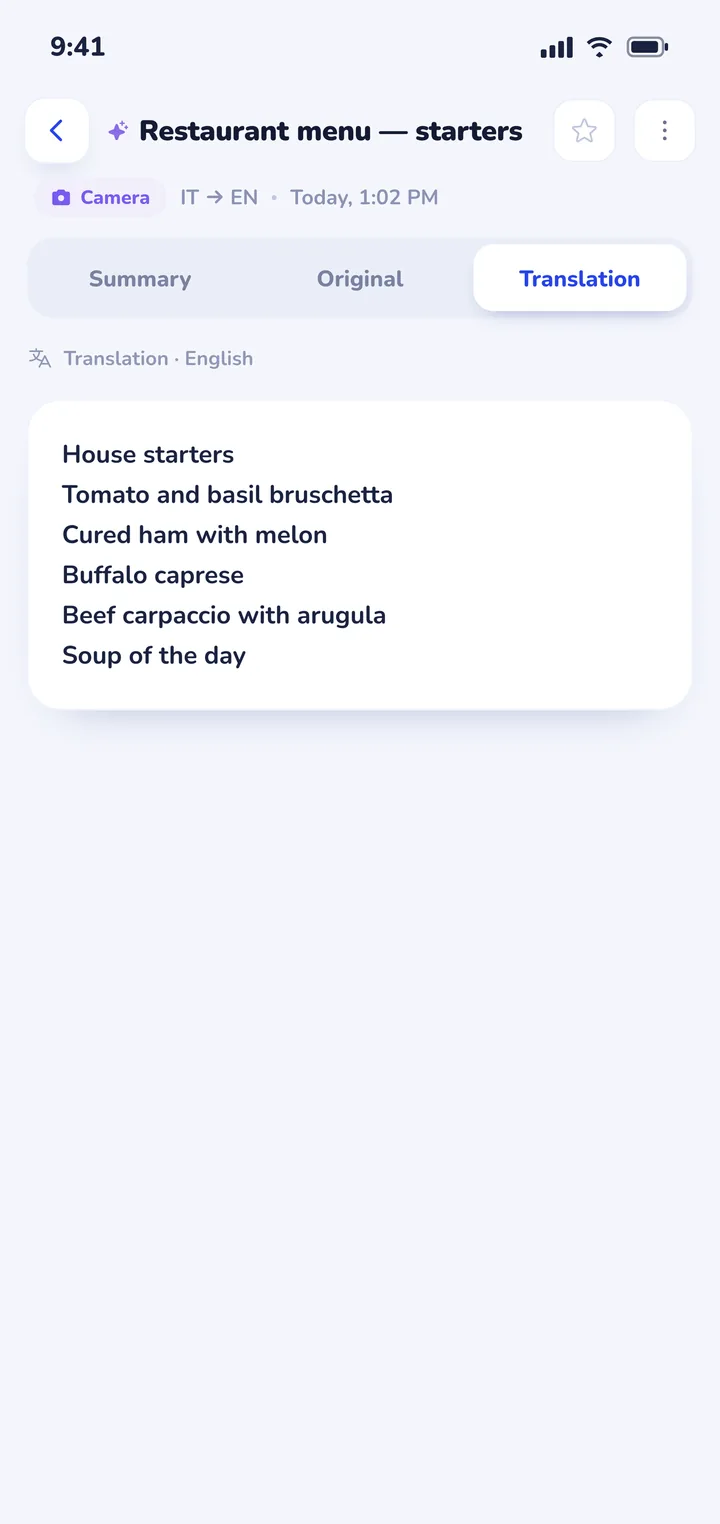
Clawmium Translate gives travelers a clean camera tool combined with instant two-way spoken conversation. You photograph the menu, and the translated names appear directly over the image, with simple taps to toggle back and forth.
What sets Clawmium Translate apart is what you do after reading the menu. If an item looks intriguing but you need to check ingredients or ask about specials, you don't need to switch apps. You flip to split-screen conversation mode, place the phone on the table, and speak directly with your server.
Handling dim lighting, laminated glare, and handwritten chalkboards
Restaurants present several optical challenges that can cause camera translation tools to miss words or misread letters. Here's how to solve the most common issues:
- Defeating laminated glare: Glossy, plastic-coated menus reflect overhead lighting directly into your camera lens, washing out text. Tilt your phone at a slight 45-degree angle rather than pointing straight down to eliminate the glare.
- Dealing with dim candlelight: Dim dining rooms cause grainy photos and blurred OCR scans. Instead of turning on your phone's harsh camera flash, which creates a bright white hot-spot, ask your dining partner to turn on their phone flashlight and hold it from the side to illuminate the page evenly.
- Decoding handwritten chalkboards: Daily specials written in chalk or cursive handwriting are notoriously difficult for computer vision to parse. Frame small clusters of three or four lines rather than the entire board, and hold the camera as steady as possible.
- Checking original numbers: Translation overlays sometimes obscure prices or dish numbering. Always toggle the translation off or press and hold the screen to verify the original numerals before ordering.
Food allergies and dietary restrictions: why camera translation isn't enough
While camera translation is great for discovering new dishes, you should never rely solely on an automated scan if you have a life-threatening food allergy or strict dietary requirement.
Computer vision engines can easily misread tiny printed characters, and culinary terminology often hides allergens inside regional dish titles. For instance, sauces made with peanut paste, broths prepared with shellfish, or dressings containing dairy might not appear in a translated menu headline. A translation error here can have serious health consequences.
If you have celiac disease, a severe nut allergy, or a religious restriction, use the camera scan as your initial filter. Then, ask your server directly to confirm how the kitchen prepares the meal. Carrying a printed allergy card written in the local language provides an essential extra safeguard.
Where Clawmium Translate fits
Clawmium Translate is our app, so weigh this section with that context in mind. We make Clawmium Translate to give travelers a reliable way to read foreign text and converse face to face across different languages on Android and iPhone.
In camera mode, you take a photo of the printed menu or pick an existing image from your gallery. The app reads and translates the text, displaying the translated dish names and descriptions directly over the photograph. You can tap the screen to hide the translation, or press and hold to peek at the original menu text underneath.
Camera processing runs through cloud vision models to provide accurate translations, which means it requires an active internet connection (Wi-Fi or cellular data). Free scans have a daily limit, and a Pro monthly subscription raises those allowances.
When a dish description isn't clear or you want to ask the server for recommendations, you can switch immediately to conversation mode. You place your phone between both of you on the table. The screen splits into two halves facing opposite directions, so each person reads in their own language as you speak.
Every conversation is automatically saved in History on your phone with an AI summary, making it easy to remember the exact names of local dishes and wine pairings. If you're curious about how conversational tools operate, our practical guide to using a conversation translator face to face explains layout and speech etiquette in detail.
There are clear trade-offs to keep in mind. Clawmium Translate doesn't offer an offline camera mode or live augmented reality video viewfinder. For dark wine cellars or remote mountain taverns without cell reception, we recommend keeping Google Translate with a downloaded offline language pack on your device.
If you're planning an international itinerary, our wider guide to translation apps for travel covers street signs, booking correspondence, and live conversations. To see how other speech tools perform, read our comparison of apps that translate in real time.


When to switch from camera to a spoken conversation
Translating the menu with your camera is only the first half of the dining experience. Here are four moments when putting down the camera and starting a quick spoken conversation works better:
- Asking for the house specialty: Menus rarely tell you which dish the chef is famous for. Asking "What do you recommend here today?" gives you a far better meal than guessing from a translated list.
- Checking portion sizes: Foreign menus don't always indicate whether a dish is meant for one person or designed for sharing family-style across the table.
- Confirming ingredients for dietary needs: When a dish description is ambiguous, speaking directly with the server ensures the kitchen knows your preferences.
- Inquiring about daily chalkboard specials: When handwritten script is too messy for your camera to parse, asking the waiter to describe the day's fresh catches or seasonal pastas saves time.
Frequently asked questions
Can Google Translate read a handwritten restaurant menu?
Google Translate can sometimes read clean handwriting, but it struggles with stylized chalkboard scripts, cursive handwriting, and messy chalk. If the app produces jumbled text, try framing two or three words at a time or ask the waitstaff to clarify the dish.
Does camera translation work without internet abroad?
Google Translate supports offline camera translation if you download the required language pack before your trip. Most cloud-based translation apps, including DeepL and Clawmium Translate, require an active Wi-Fi or cellular data connection to process images.
How do I translate a menu on iPhone with the camera?
On an iPhone, you can use the built-in Camera app with Live Text by pointing your camera at printed foreign text and tapping the yellow text selection icon in the bottom corner. Alternatively, you can open Google Translate or Clawmium Translate to scan the menu and see translated overlays.
What is the best way to handle food allergies when dining abroad?
Use camera translation to get an initial reading of the menu, but never rely on automated text alone for severe allergies. Always confirm ingredients directly with the waitstaff using a spoken conversation app or a localized written allergy card explaining your condition.
Sources
- Google Translate Help, Translate text in images and photos on Android and iPhone, checked 7 November 2026.
- Apple Support, Use Live Text to interact with content in a photo on iPhone, checked 7 November 2026.
- Naver Papago, Papago image translation features and language options, checked 7 November 2026.
- DeepL Support, DeepL mobile features and supported languages, checked 7 November 2026.
Try a conversation before your next meal abroad
Free to start. 60+ languages. Put the phone between two people and talk.