Use a conversation translator with a split screen, put the phone flat between you, pick the two languages, tap the mic once and talk. Google Translate's face-to-face mode, Apple Translate's Face to Face view, Samsung Interpreter and Clawmium Translate, which is ours, all work this way.
A conversation translator is an app that listens to two people speaking different languages and shows or speaks each person's words in the other's language as they talk. The best setup is one phone laid flat between you in a split-screen mode, so each person reads their own language on their own half and nobody passes the phone back and forth. Google Translate, Apple Translate, Samsung Interpreter and dedicated apps such as Clawmium Translate offer this.
Short sentences, taking turns and repeating numbers back make the biggest difference to accuracy. Conversation translators need a quiet-ish room, and most need internet. They're fine for travel, family and errands, but not a substitute for a professional interpreter at a doctor's or a lawyer's.
What a conversation translator does
A text translator waits for you to type. A voice translator usually waits for you to press a button and finish a sentence. A conversation translator keeps listening for the whole exchange, recognises both languages, and puts each person's words on the other person's side of the screen as they speak.
The goal is that you look at each other most of the time and glance at the screen to read. That sounds small, but it's what separates a conversation from an interview conducted through a phone.
Why passing the phone back and forth fails
The common way people use translation apps is to speak, wait, then turn the phone around so the other person can read or listen. Then they speak, and the phone comes back. It works for "where is the train station". It breaks down after a few minutes of anything longer, for three reasons.
Each handover adds a few seconds, and in a twenty-minute conversation those seconds add up to several minutes of silence. Only one person can see the screen at a time, so whoever isn't holding the phone loses track of what has been said. And because the app is waiting for a button press, people start speaking in short, formal sentences to suit the tool, which makes everyone sound stiffer than they are.
A split screen removes the handover. Both people can read at once, the history stays visible, and nobody needs to touch the phone after the first tap.
How the face-to-face split screen works
Google Translate, Apple Translate, Samsung Interpreter and Clawmium Translate all have a split-screen mode, and they work in much the same way.
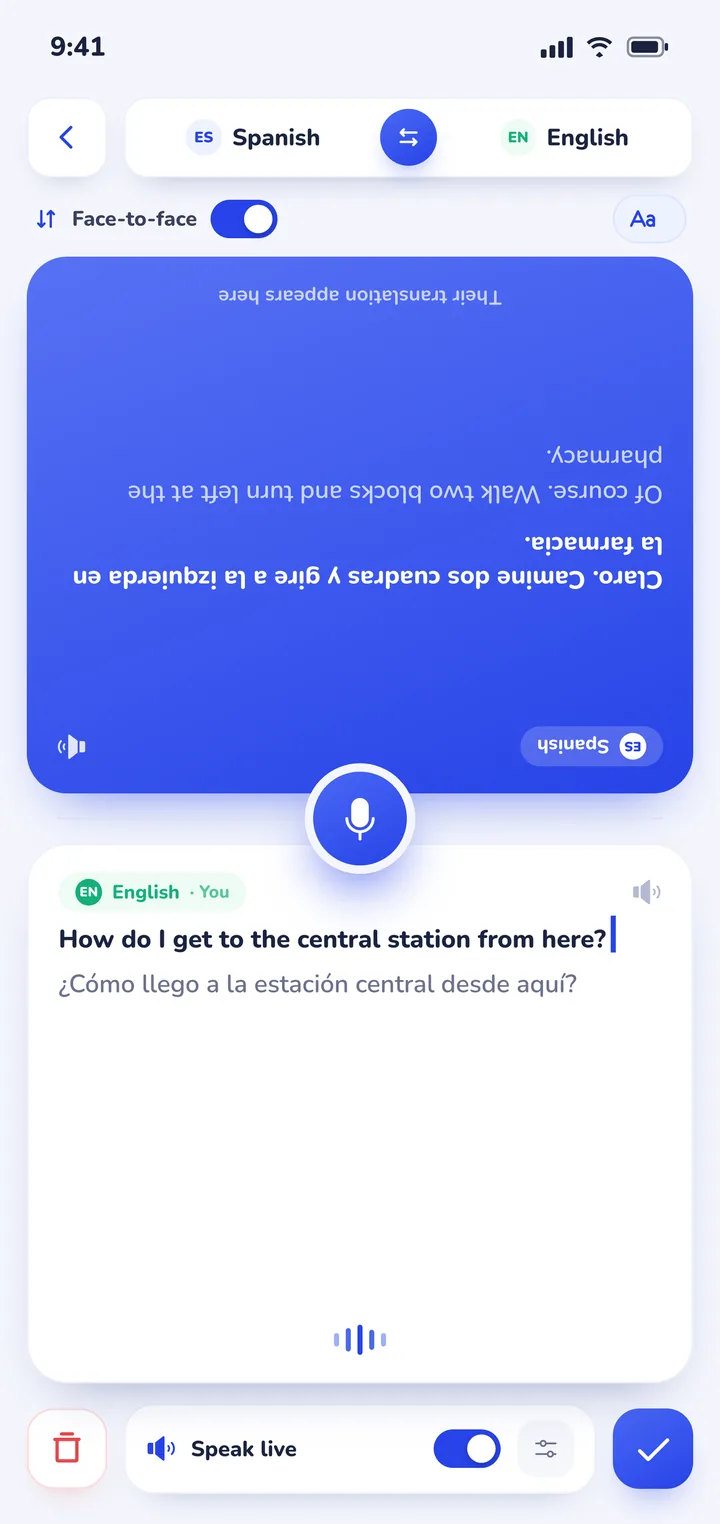
Here's how it looks in Clawmium Translate's conversation mode, where the screen divides into two panes. The bottom pane faces you and shows everything in your language: your own words, and the translation of what the other person said. The top pane is rotated 180 degrees so it reads the right way up for the person sitting across from you, and it shows the same conversation in their language.
Once you tap the microphone, the app keeps listening. When either of you speaks, it recognises which of the two chosen languages it is, writes the words on the speaker's side as they come, and puts the translation on the listener's side a moment later. You can watch your own sentence appear, which is a quick way to notice if the app misheard you.
Setting it up, step by step
These are the steps in Clawmium Translate. Google Translate's are similar, and our guide to Google Translate's conversation mode covers them.
- Open Clawmium Translate and choose conversation mode.
- Pick your language and theirs. The order doesn't matter.
- Lay the phone flat on the table between you, with the top half pointing at them. If you're standing, hold it at chest height and tilt it so both of you can see.
- Tap the mic once.
- Talk. When you're done, tap the mic again to stop.
If the other person has never used a translator before, say a short first sentence that explains it, something like "I'm using a translator app, you can read your language on this side". Most people understand straight away once they see their own language appear.
Habits that make a translated conversation feel normal
The technology does most of the work. These habits do the rest.
- Talk to the person, not the phone. Look at them while you speak and let your eyes drop to the screen when they reply.
- Pause between ideas. Two or three short sentences translate better than one long one with several clauses.
- Take turns. If you both talk at once, neither sentence comes out clean.
- Check the important parts. Repeat back a time, a price or a dose: "So, Thursday at four?"
- Be patient with names. Spell or show any name or address that matters.
- Ask before you start. Some people are uncomfortable being recorded, even briefly. A quick "is this OK?" goes a long way.
When to turn on read-aloud
Read-aloud speaks each translation, and in Clawmium Translate each speaker can have a different voice. It helps when the other person can't easily read the screen, for example an older relative without their glasses, a taxi driver who needs their eyes on the road, or a shop assistant reaching for something on a shelf. It also helps when you need your own hands free.
In a quiet one-to-one conversation at a table, many people prefer to leave it off and read. Spoken translations make each exchange longer, and reading is faster.
After the conversation: keep a record
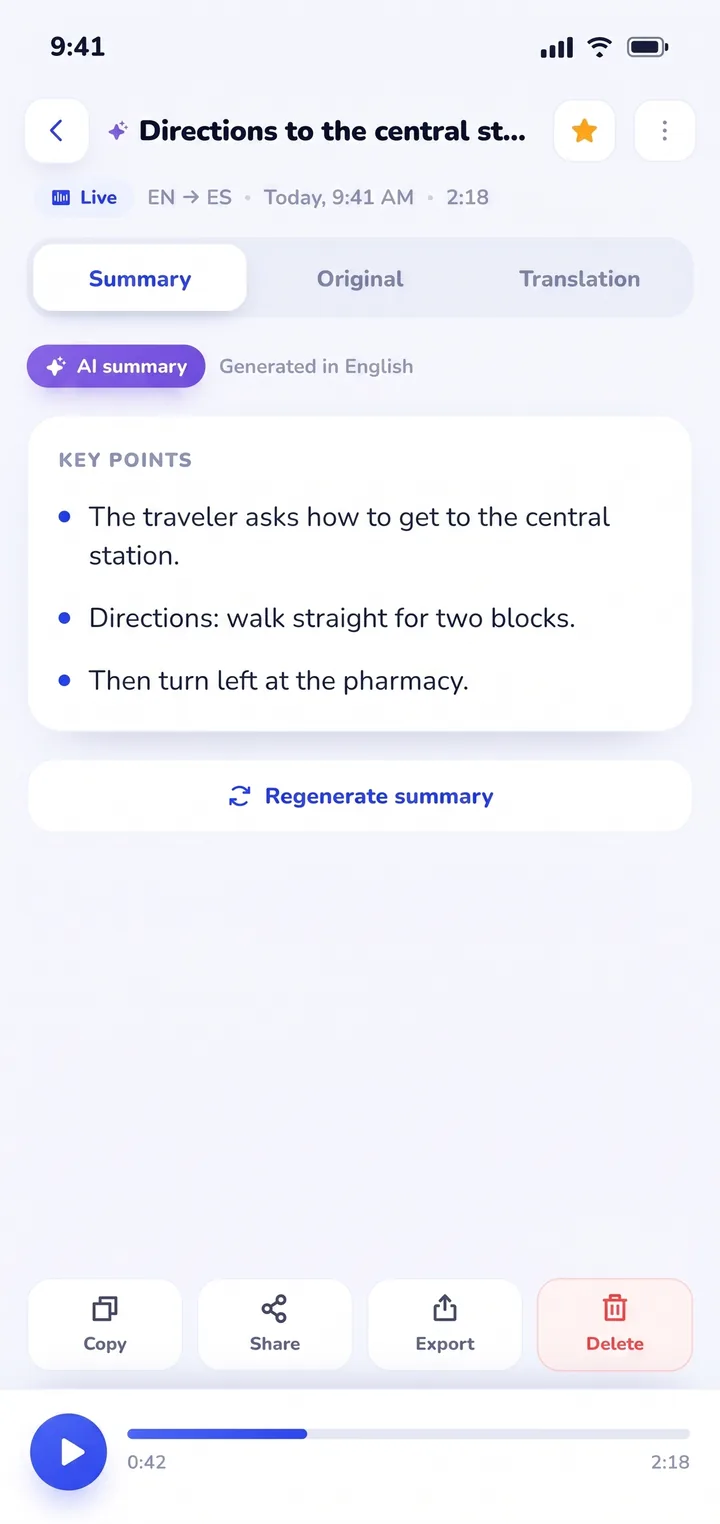
Clawmium Translate saves every session on your phone with the full transcript in both languages and an AI summary of the main points. Having a record matters more than people expect. After a medical appointment, a meeting with a landlord or a parent-teacher evening, you can check exactly what was agreed instead of reconstructing it from memory. You can also share the transcript with someone who couldn't be there.
Where conversation translators help most
- Travel: taxis, markets, pharmacies, hotel front desks, asking for directions.
- Family: meeting a partner's parents, talking with grandparents who speak another language.
- Appointments abroad: schools, banks, rental agencies. For a doctor, ask for a professional interpreter as well; our article on talking to a doctor in another language explains how.
- Work: a first day with colleagues who speak another language, or a contractor in your home.
For a large group listening to one speaker, such as a conference or a service, a captioning platform built for audiences is a better fit.
To compare the apps themselves, see our list of apps that translate in real time or our technical comparison of real-time AI translator apps.
Where Clawmium Translate fits
Clawmium Translate is our app, so weigh this section with that in mind. Its conversation mode is the split screen described above, it works out which of your two languages is being spoken, and every session is saved with the transcript in both languages and an AI summary, titled automatically, searchable and shareable. It supports more than 60 languages and runs on Android and iPhone. It's free to download with a daily allowance and no ads, and Pro raises the limits.
It needs an internet connection and doesn't translate phone calls. Accuracy drops in loud places and when people talk over each other, as it does for every app here. For a conversation with no signal, Apple Translate or Samsung Interpreter with the languages downloaded is the better choice.


Sources
- Google Translate Help, Hear live speech to speech translations with live translate, checked 3 November 2026.
- Apple Support, Translate in-person conversations with iPhone, checked 3 November 2026.
- Samsung, Galaxy AI languages and usage guide, updated 1 July 2026, checked 3 November 2026.
Frequently asked questions
What is a live interpreter app?
A live interpreter app listens to a conversation and gives each person the meaning in their own language as it happens, the way a human interpreter would in the room. Unlike a text translator, nobody types or waits for a turn.
Can two people use one phone for a conversation translator?
Yes. That's what a split-screen conversation mode is for. Each person reads their own language, with the top half turned to face the person opposite, so only one phone is needed.
Does the conversation translator detect which language is being spoken?
Yes. You choose two languages at the start, and the app recognises which of them each person is speaking, so nobody presses a language button before talking.
Can it speak the translation out loud?
Yes. Google Translate, Apple Translate and Clawmium Translate can all read translations aloud, which helps when the other person can't read the screen easily.
Is the conversation saved?
It depends on the app. Clawmium Translate saves each session on your phone with the transcript in both languages and an AI summary of the key points.
Try a live conversation
Free to start. 60+ languages. Each person reads their own language.