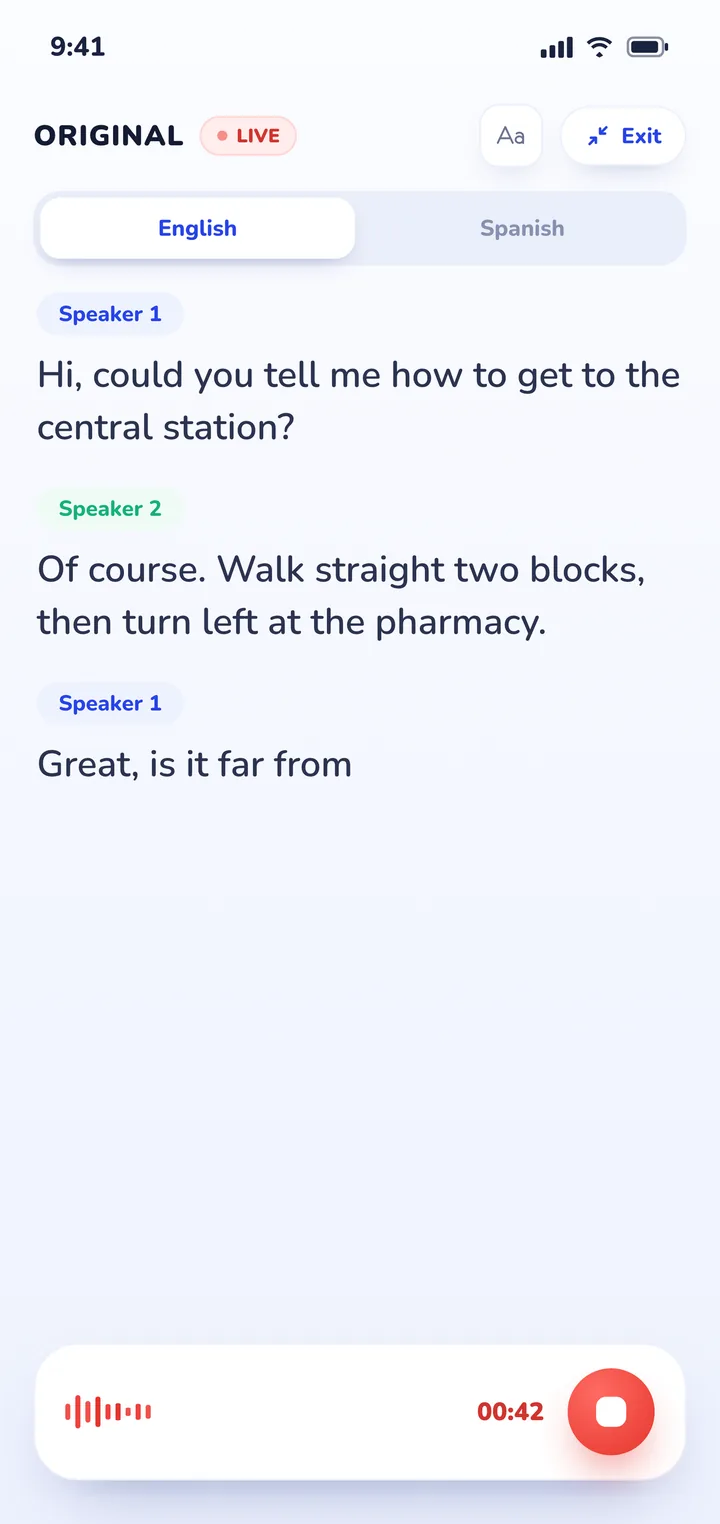
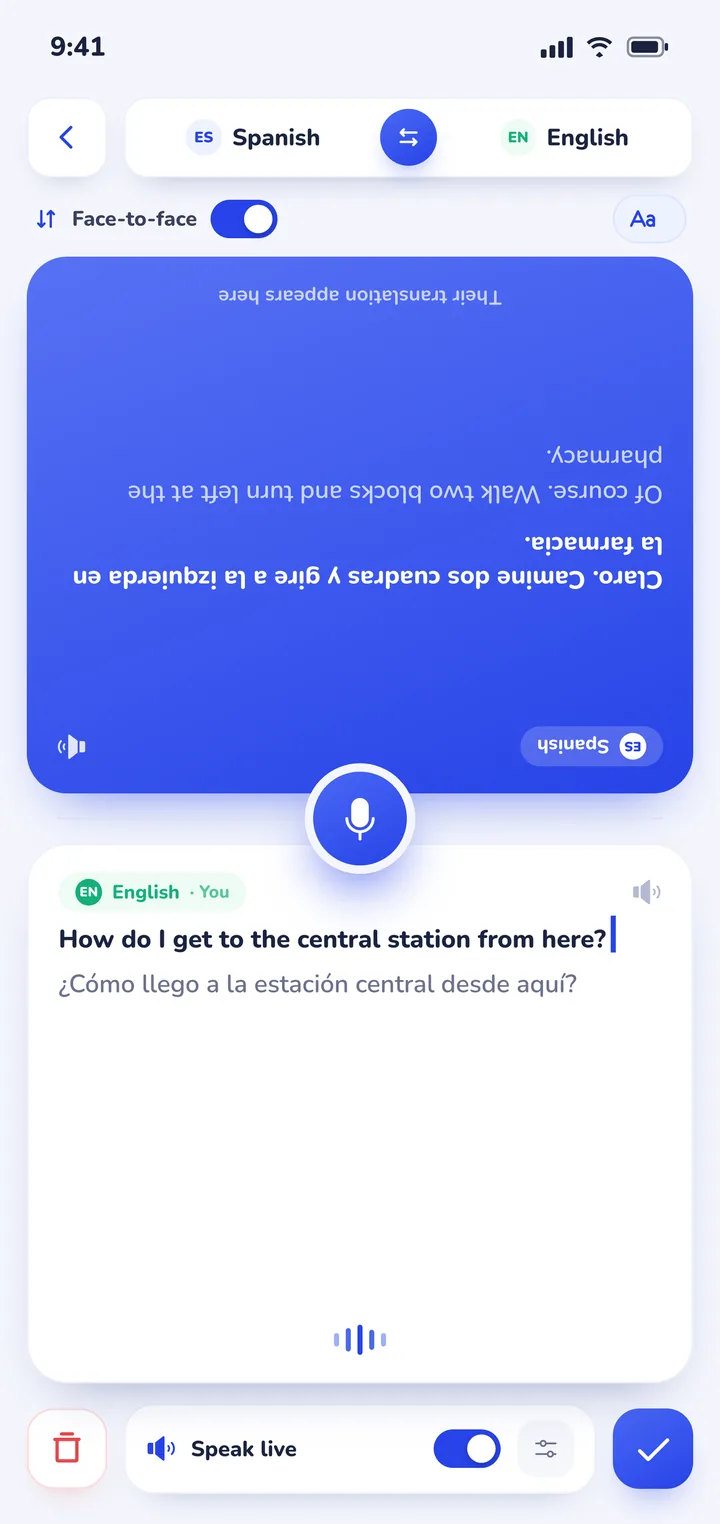
Open Google Translate, tap live translate at the bottom, choose your two languages and a mode, then start talking. Conversation mode speaks each translation aloud, and face-to-face mode splits the screen so each person reads their own language. It's free and supports more than 70 languages. If you also want every conversation saved with a transcript and a summary you can read later, use an app built for that, such as Clawmium Translate.
Google Translate conversation mode is now part of live translate, which Google added to the Translate app in August 2025. The feature works on Android and iPhone, listens continuously, detects which of two chosen languages is being spoken and reads each translation aloud, with a transcript of both languages on screen. Its modes are Conversation, Face to face (a split screen, one half per person), Listening (translations in your headphones), Text only and Custom.
Google says it supports more than 70 languages, and it's free. Offline live translation is limited to Pixel 9, 10 and 11 phones, for English paired with ten languages; other phones need data. It doesn't keep a searchable record of each conversation with a summary, which is where a dedicated app helps.
What changed in Google Translate
For years, Google Translate's conversation mode worked one turn at a time: each person tapped the microphone, spoke, and waited for the translation. In August 2025 Google added live translate to the Translate app on Android and iPhone. It listens continuously, switches between your two languages on its own, and reads each translation aloud while showing a transcript of both languages on screen. Google said at launch that it supports more than 70 languages, and it first rolled out in the United States, India and Mexico.
The conversation features now live under that one live translate button, as separate modes.
The live translate modes
Google's help pages describe these modes:
- Conversation: Two people take turns speaking, and translations play through the phone speaker or your headphones.
- Face to face: The screen splits in two, and each person sees the transcription and translation in their own language on their half.
- Listening: For hearing a translation privately: connect headphones or hold the phone to your ear. Useful for following a tour guide or an announcement.
- Text only: Translations appear on screen with no audio.
- Custom settings: You choose text only, the speaker or headphones yourself.
How to start it, step by step
- Open the Google Translate app. If you want to hear translations privately, connect your headphones first.
- Tap the live translate icon at the bottom of the screen.
- Choose a mode and your two languages.
- Start speaking. The app detects when one language stops and the other starts, so nobody needs to press a button between turns.
- Tap Speak to pause or resume, and tap any line of text to hear it again.
On Android, Google says the translation keeps running if you switch apps or lock the screen, which helps in a long conversation.
Tips for a better translated conversation
Our guide to using a conversation translator face to face goes further into the etiquette. The short list:
Most problems in a translated conversation come from how people talk, not from the app. A few habits make a large difference:
- Speak in short, complete sentences, then pause. A clear pause tells the app a turn has ended.
- Keep the phone between you and close to whoever is speaking. A café table works. A loud bar doesn't.
- Avoid talking over each other. Overlapping speech is the most common cause of a garbled turn.
- Skip idioms and jokes when the content matters. They tend to come out literally.
- Repeat numbers, dates, addresses and names, and check them on screen before you rely on them.
Where Google Translate is the right choice
For most people, Google Translate is the first thing to try. It's free, it's probably already on your phone, and Google says it supports more than 70 languages. The face-to-face mode handles a sit-down conversation well, and the listening mode covers situations where only you need the translation.
On Pixel 9, 10 and 11 phones, Google also offers offline live translation for English paired with Italian, Spanish, French, German, Portuguese, Hindi, Russian, Swedish, Japanese or Indonesian. On other phones, plan on needing a data connection.
When to use something else
A few situations call for a different tool:
- A group where everyone has their own phone: Microsoft Translator used to handle this with a join code, but it retired that multi-device conversation feature on 30 June 2026, according to its release notes. For a group today, plan on one phone per pair of speakers.
- A phone call: translating a call is a separate feature. On iPhone, iOS 26 added Live Translation inside the Phone app on supported models, and Samsung's Live Translate does the same on Galaxy phones.
- A conversation you need to remember: if you'll want to read back what was said later, such as a landlord's terms or a school meeting, use an app that saves each conversation as a record you can search and share.
- A medical appointment: ask for a professional interpreter as well. Our article on talking to a doctor in another language explains your rights.
For other apps side by side, see our list of apps that translate in real time. If you'd rather hear translations in your ear, our guide to translator earbuds vs a phone app covers Pixel Buds, AirPods and the rest.
What Clawmium Translate adds
Clawmium Translate is our app, so weigh this section with that in mind. It does the same core job, a two-person conversation with each person reading their own language on a split screen, and it's built around what happens after the conversation:
- Every session is saved on your phone with the full transcript in both languages and an AI summary of the main points.
- Saved sessions are titled automatically and searchable, so you can search for last week's conversation, then share or export it.
- Read-aloud can use a different voice for each speaker, so a two-way conversation doesn't come back in one flat voice.
- Camera and photo translation for menus, signs and letters sits in the same app, next to your conversations.
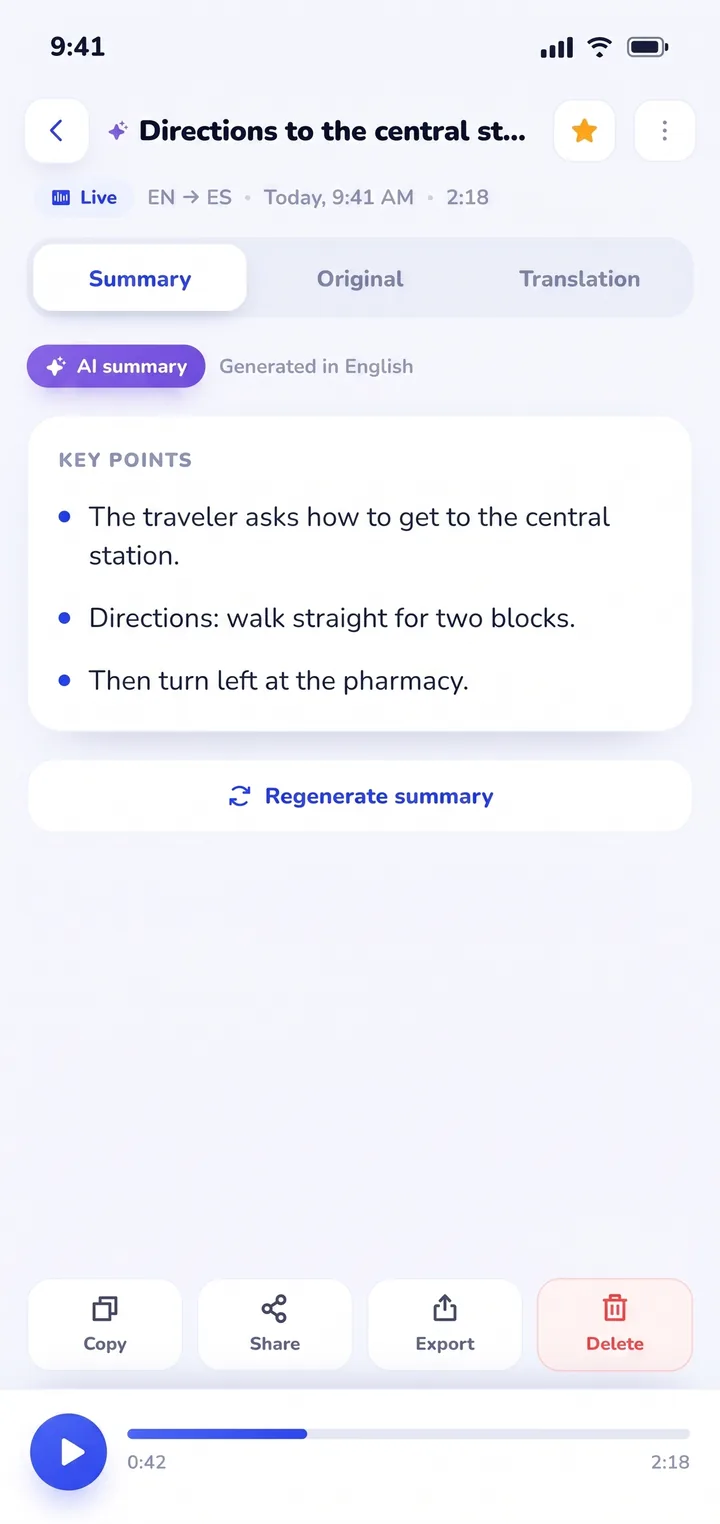
Clawmium Translate supports more than 60 languages, fewer than Google Translate. You can download it free with a daily allowance and no ads, and Pro raises the limits. It runs on Android and iPhone, needs an internet connection and doesn't translate phone calls.


Sources
- Google Translate Help, Hear live speech to speech translations with live translate (Android) and (iPhone and iPad), checked 31 October 2026.
- Google, announcement of live translate in the Translate app, 26 August 2025.
- Samsung, Galaxy AI languages and usage guide, updated 1 July 2026, checked 3 November 2026.
- Microsoft Translator release notes for version 26.7.1, 30 June 2026 ("The multi-device conversation feature has been retired"), as listed on APKMirror, checked 3 November 2026.
Frequently asked questions
Where is conversation mode in Google Translate?
It's inside live translate. Open the Translate app, tap the live translate icon at the bottom, and choose the Conversation or Face to face mode along with your two languages.
Does Google Translate have a split screen for two people?
Yes. Live translate has a face-to-face mode that splits the screen, so each person sees the transcription and translation in their own language on their half.
Does Google Translate conversation mode work offline?
Google's help page says offline live translation is currently available on Pixel 9, 10 and 11 phones, for English paired with ten languages including Spanish, French, German, Japanese and Hindi. On other phones it needs a data connection.
Is Google Translate conversation mode free?
Yes. Live translate, including its conversation and face-to-face modes, is free in the Google Translate app on Android and iPhone.
How many languages does Google Translate live translate support?
Google said at launch that live translate supports more than 70 languages, including Arabic, French, Hindi, Korean, Spanish and Tamil.
Try a live conversation
Free to start. 60+ languages. Each person reads their own language.